Invoicing

Bill a whole school in one invoice.

Create Term 3 Fees once, assign every student who should pay it, and publish. Each student gets their own trackable invoice, the ledger is posted automatically, and you can see who has paid, who hasn’t and how much is still out, from one screen.

  • One invoice for a whole class, form or boarding cohort
  • One-off invoices for a single student or any customer
  • Every published invoice posted to the ledger, per student
Two kinds of invoice

One for the whole school. One for the one-offs.

Most of a school’s billing is the same charge to hundreds of students. The rest is a single student, or someone who isn’t a student at all. NuPay has an invoice for each.

Master invoice

A charge many students share

Term fees, boarding, a sports levy, an exam charge. Create it once, assign the students, publish.

  • Every assigned student gets their own copy, with their own amount paid, balance and status
  • Assign a whole class, form or boarding cohort with a couple of filters and one tick
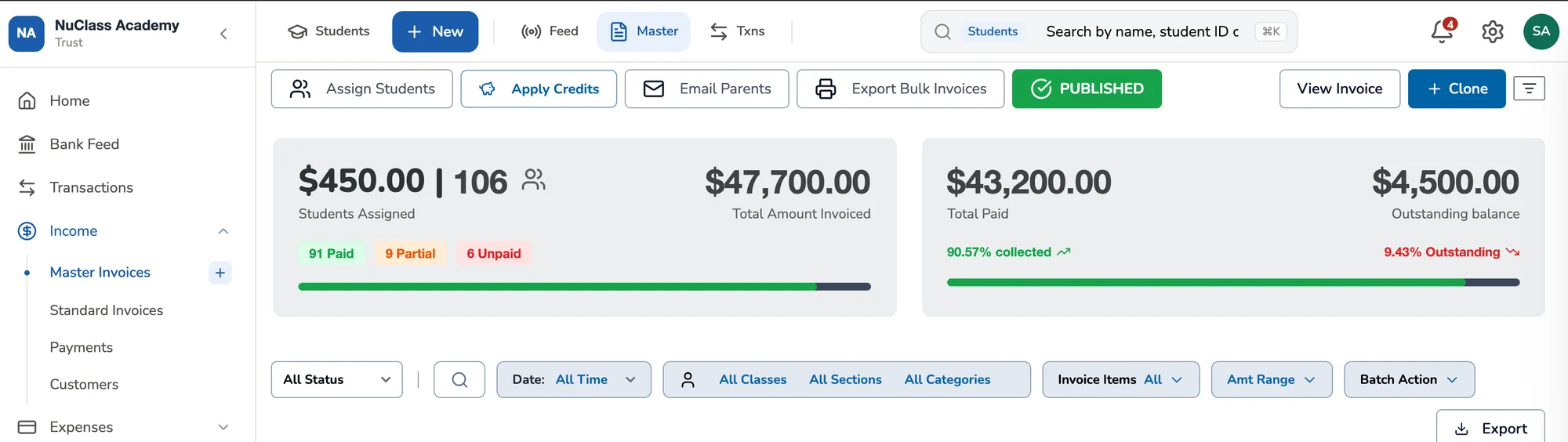
  • A dashboard for the whole charge: invoiced, paid, outstanding and every student’s position
  • Apply student credits across the whole invoice in one go
Standard invoice

A one-off, for one student or one customer

A replacement blazer, a bursary top-up, a hall hire, an old boys’ association. Raise it from the student’s or customer’s profile.

  • Billed to a student or to a customer who isn’t a student
  • Save it as a draft, or save and post it in one step
  • Due on receipt, in 15 or 30 days, or on a date you choose
  • Opens from the profile it belongs to, and shows in that statement
Master invoices

Create once. Assign hundreds. Publish.

  1. 1

    Create the invoice

    Give it a title, a department, the bank it should be paid into, the session and term, and a due-date rule. Add the line items.

  2. 2

    Assign the students

    Filter the school roll by class, section, gender or boarding status and tick everyone who should pay. Select all works on whatever the filters show.

  3. 3

    Publish

    Every student gets their own invoice and their own journal entry, in one step. Nothing reaches the ledger until you do.

  • “All boarders in Form 2” is two filters and one tick.
  • A running summary shows students selected, the amount each will be charged and the total due.
  • Add a student after publishing and their invoice is posted straight away. Students already posted stay locked, so nothing is lost.
  • The invoice appears on each student’s profile, in their statement and in A/R ageing.
A master invoice dashboard in NuPay: 106 students assigned at $450 each, $51,750 invoiced, $3,660 paid, $48,090 outstanding, with Assign Students and Apply Credits actions.
A master invoice dashboard in NuPay: students assigned, invoiced, paid and outstanding, with every student’s position below.
What’s on an invoice

Every line already knows where it belongs in the books

An invoice in NuPay isn’t just a document. Each line item is tied to an income account, and the invoice to a department, a bank account and a term.

  • Line items with a description, quantity and rate. Each one posts to its own income account, so tuition, levies and exam fees are reported separately.
  • Department and bank. The invoice names the department it belongs to and the bank account it should be paid into.
  • Session and term, so every charge sits in the right period.
  • Due-date rules: on receipt, Net 7, Net 15, Net 30 or a custom date, with the due date worked out for you.
  • Accountants who can see the invoice, and a code generated automatically.
What parents see

Professional invoices that look like they came from your school

Preview exactly what a parent will see before you publish. Every invoice carries your school’s name, the term, the line items and the bank account it should be paid into, whether it is going to one student or four hundred.

  • Your school’s name and department on every invoice
  • Clear line items: tuition, levies, trips and exam charges, each with its own amount
  • The invoice code, issue date and due date, worked out from the rule you chose
  • The bank account to pay into, and a Pay Online option
  • The same template for a master invoice and a one-off, so parents always recognise it
Rules your auditor will like

Three rules that hold everywhere

They are what make the numbers on the dashboard the same as the numbers in the ledger.

If the invoice is…Editing it…
Not yet publishedIs free. Change anything.
Published, nothing paidIs allowed after a warning. The change is carried to every student, with one correcting journal entry each.
Paid, even in partIs refused. Void it and reissue instead, so what was collected stays exactly as it was.
Getting paid

Four ways to settle it. One balance.

However the money arrives, it updates the same invoice, the same student balance and the same reports.

  • Part payments are fine. The invoice shows as partial, with the balance still visible to the school and the parent.
  • Overpayment never becomes income. The excess becomes a student credit, held on the student’s account for the next invoice.
  • Status moves on its own: Unpaid, Partial, Paid, with a timeline of every payment on the invoice.
  • Receipts for every payment, whichever way it came in.
Invoice status

Track the status of every invoice

Status updates the moment a payment lands

See whether an invoice is unpaid, partially paid or paid, from the invoice itself, the student’s profile or the master invoice dashboard. You never update a status by hand: it moves on its own as payments arrive at the desk, through the bank feed, online or from a credit.

  • Unpaid, Partial and Paid, with the balance still due on every row
  • A timeline on each invoice of every payment made against it
  • Due and overdue invoices in A/R ageing, with how many days late
  • Filter the invoice lists by status and date to find what still needs chasing
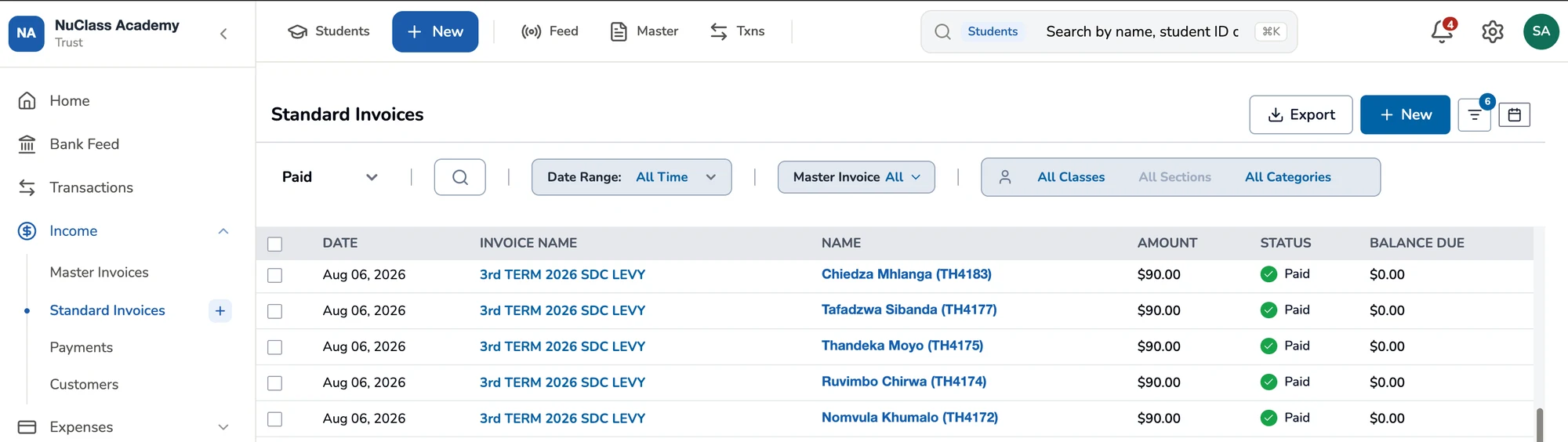
The Standard Invoices list in NuPay, filtered to Paid, with a status and balance due on every row.
The Standard Invoices list in NuPay: a status and balance due on every row, filtered by status, date and master invoice.
Next year’s fees

Invoice January in November, without bending the books

Schools bill next year’s first term before this year ends. Tick “invoice is for the next financial year” and NuPay holds the income as unearned revenue until the recognition date, then moves it into the right year on its own. Parents see a normal invoice. Your Profit & Loss sees the income in the year it belongs to.

Term 1 Fees 2027Inv-19-7c1-2027 · Published 20 Nov 2026Revenue deferred
Invoiced to parentsNov 2026
Held as unearned revenueUntil 1 Jan
Recognised as income1 Jan 2027
Knowing where you stand

Who owes what, and how late it is

Every invoice feeds the same reports, so the answer is always current and always the same wherever you look.

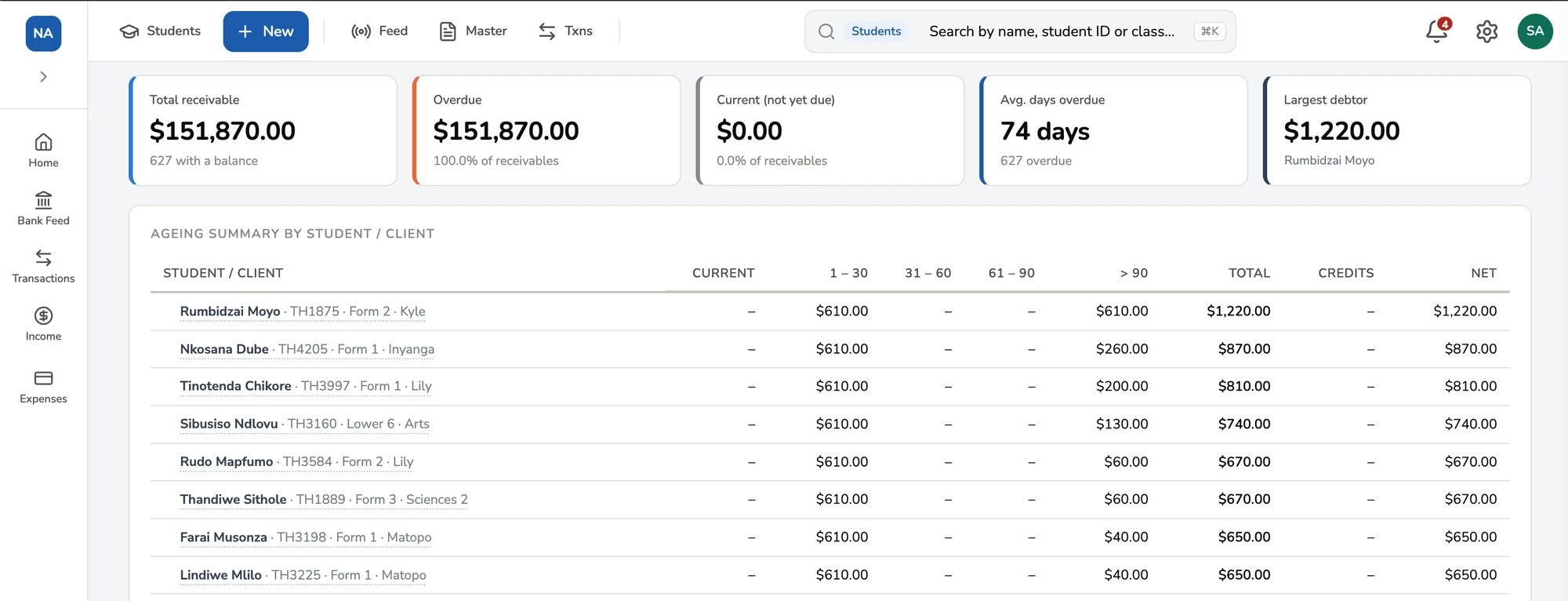
NuPay A/R ageing report: total receivable, overdue, average days overdue and largest debtor, above an ageing summary by student in current, 1-30, 31-60, 61-90 and over 90 day columns.
The A/R ageing report in NuPay: the totals at the top, then every student who owes, by how late.

FAQs

What is the difference between a master invoice and a standard invoice?

A master invoice is one charge shared by many students, such as term fees or a levy: create it once, assign the students, and each gets their own copy. A standard invoice is a one-off for a single student or for a customer who isn’t a student.

How do I invoice a whole class or all boarders?

Create the master invoice, open Assign Students, filter the school roll by class, section, gender or boarding status, and select all. Publish, and every selected student is invoiced and posted to the ledger in one step.

Can I add a student after the invoice is published?

Yes. Their invoice is posted straight away, identical to the ones published earlier. Students already posted stay locked, so you void or remove them deliberately rather than by accident.

What happens when an invoice is published?

One journal entry is posted per student: a debit to Accounts Receivable and a credit to the income account of each line item. The invoice becomes active, and NuPay records who published it and when. Until then, a draft touches nothing.

Can I edit an invoice after sending it?

If nothing has been paid, yes, after a warning: the change is carried to every student with a correcting journal entry each. Once anything has been paid, it can’t be edited. Void it and reissue instead.

What if a parent pays more than the invoice?

The excess never becomes income. It becomes a student credit, held on their account and applied to a later invoice, oldest credit first.

Can I invoice someone who isn’t a student?

Yes. A standard invoice can be billed to a customer, such as a hall hire or an association, and shows in that customer’s statement.

Can I invoice next year’s fees this year?

Yes. Mark the invoice as being for the next financial year and set a recognition date. NuPay holds the income as unearned revenue until that date, then recognises it in the right year. Parents see a normal invoice.

What currency are invoices in?

Invoices are raised in USD, the school’s base currency. Payments can be taken in other currencies at the approved rate for that day.

Do parents need to sign up for NuPay?

No. Parents receive invoices from their school and can pay through the school’s parent portal.

Invoice the whole school before break time

See a term’s fees go from one invoice to four hundred posted student accounts, and watch them get paid.